

Installation
Install ESLint and eslint-plugin-gameface. The plugin ships with the HTML, CSS, Vue, and Svelte SFC tooling its preset uses (@html-eslint/eslint-plugin, @eslint/css, vue-eslint-parser, eslint-plugin-vue, svelte-eslint-parser, eslint-plugin-svelte, and the TypeScript parser for .ts / .tsx / <script lang="ts">) - you do not install those separately.
npm install --save-dev eslint eslint-plugin-gamefaceRequirements:
- ESLint 9.15+ with flat config.
- Use Node.js
>=18.18.0version. We recomend to use latest versions of Node.js.
After you configure the plugin, you can verify its work from the terminal:
npx eslint .You should see gameface/... messages on HTML, CSS, JSX, Vue, or Svelte files that use unsupported Gameface features.
VS Code (edit-time hints)
Section titled “VS Code (edit-time hints)”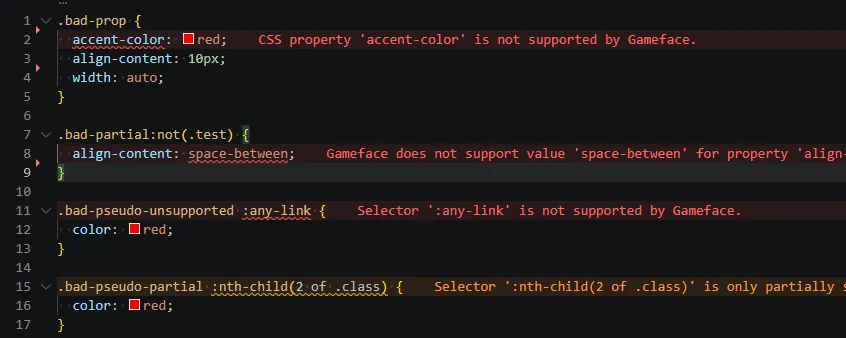
Terminal ESLint does not add squiggles in the editor by itself. For inline diagnostics while you type, install the ESLint extension (dbaeumer.vscode-eslint).
- Install the extension from the VS Code Marketplace.
- Ensure your project has
eslint.config.jswith the recommended preset. - Open an HTML, CSS, JSX, Vue, or Svelte file—the Problems panel and editor underlines should show
gameface/issues.
Validate HTML, CSS, Vue, Svelte, and other file types
Section titled “Validate HTML, CSS, Vue, Svelte, and other file types”By default, the ESLint extension mainly lints JavaScript and TypeScript. To run ESLint (and Gameface rules) while you edit .html, .css, .scss, .vue, .svelte, and JSX/TSX files, add eslint.validate to your workspace or user settings.
Create or edit .vscode/settings.json in your project:
{ "eslint.validate": [ "javascript", // Enables Javascript files validation (.js) "javascriptreact", // Enables Javascript React files validation (.jsx) "typescript", // Enables Typescript files validation (.ts) "typescriptreact", // Enables Typescript React files validation (.tsx) "css", // Enables CSS files validation (.css) "html", // Enables HTML files validation (.html) "scss", // Enables SCSS files validation (.scss) "vue", // Enables Vue files validation (.vue) "svelte" // Enables Svelte files validation (.svelte) ]}or add the same to your global VS Code settings (Command Palette → Preferences: Open Settings (JSON)).
After that, reload the window or run ESLint: Restart ESLint Server command (Ctrl + Shift + P) to apply the new changes.
If nothing appears, check that ESLint is enabled for the workspace (Command Palette → ESLint: Show Output Channel) and that the file type is not excluded in VS Code or ESLint ignores.
Other editors (WebStorm, Neovim, etc.) have their own ESLint integrations; the same eslint.config.js applies.
© 2026 Coherent Labs. All rights reserved.